
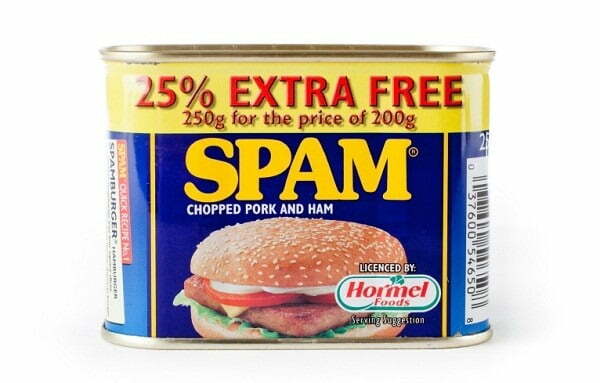
 Your bank, airline or other trusted vendor has emailed you an attachment or a link and asked you to check in, confirm login information or some other task? You’ve heard you’re not supposed to give out your password to emails that look legit but this is from your bank and they’re not asking for your password they’re asking you to click on this link and log into your account – is this spam?
Likely – yes! Here are some general rules for detecting spam, virus spreading or phishing emails. Before you tune out, phishing is the practice of sending out an email that asks you to interact with it for the purposes of confirming that your account is active; this information may then be used later for more malfeasant purposes.
Rule #1: Did you order the product? If you are being asked to confirm a flight, a purchase or shipping directions and you haven’t ordered it – it’s likely a phishing email – ignore it.
Rule#2: Are you being asked to open an attachment? Look at the file extension. The file extension is the part that comes after the file title (example dontopenunknownfiles.doc). If the file extension is .exe, .zip, or any other kind of extension that you don’t recognize, don’t open it. In fact, play it safe and don’t open anything that you haven’t asked for.
Rule #3: You are being asked to click on a link? Hover your mouse over the link without clicking on it. This will cause the destination URL to appear, where is that link actually taking you? Look at it closely, there are some very sophisticated scams out there. Try it now; can you spot the difference between Click Here and Click Here?
Come back next week for more e-literacy tips!Rich Text AreaToolbarBold (Ctrl + B)Italic (Ctrl + I)Strikethrough (Alt + Shift + D)Unordered list (Alt + Shift + U)Ordered list (Alt + Shift + O)Blockquote (Alt + Shift + Q)Align Left (Alt + Shift + L)Align Center (Alt + Shift + C)Align Right (Alt + Shift + R)Insert/edit link (Alt + Shift + A)Unlink (Alt + Shift + S)Insert More Tag (Alt + Shift + T)Toggle spellchecker (Alt + Shift + N)▼
Toggle fullscreen mode (Alt + Shift + G)Show/Hide Kitchen Sink (Alt + Shift + Z)
FormatFormat▼
UnderlineAlign Full (Alt + Shift + J)Select text color▼
Paste as Plain TextPaste from WordRemove formattingInsert custom characterOutdentIndentUndo (Ctrl + Z)Redo (Ctrl + Y)Help (Alt + Shift + H)
Your bank, airline or other trusted vendor has emailed you an attachment or a link and asked you to check in, confirm login information or some other task? You’ve heard you’re not supposed to give out your password to emails that look legit but this is from your bank and they’re not asking for your password they’re asking you to click on this link and log into your account – is this spam?
Likely – yes! Here are some general rules for detecting spam, virus spreading or phishing emails. Before you tune out, phishing is the practice of sending out an email that asks you to interact with it for the purposes of confirming that your account is active; this information may then be used later for more malfeasant purposes.
Rule #1: Did you order the product? If you are being asked to confirm a flight, a purchase or shipping directions and you haven’t ordered it – it’s likely a phishing email – ignore it.
Rule#2: Are you being asked to open an attachment? Look at the file extension. The file extension is the part that comes after the file title (example dontopenunknownfiles.doc). If the file extension is .exe, .zip, or any other kind of extension that you don’t recognize, don’t open it. In fact, play it safe and don’t open anything that you haven’t asked for.
Rule #3: You are being asked to click on a link? Hover your mouse over the link without clicking on it. This will cause the destination URL to appear, where is that link actually taking you? Look at it closely, there are some very sophisticated scams out there. Try it now; can you spot the difference between Click Here and Click Here?
Come back next week for more e-literacy tips!
Path: